
Bank on Movavi Video Converter to convert your WMV video into MP4 easily
By Bane Tech Guest Writer
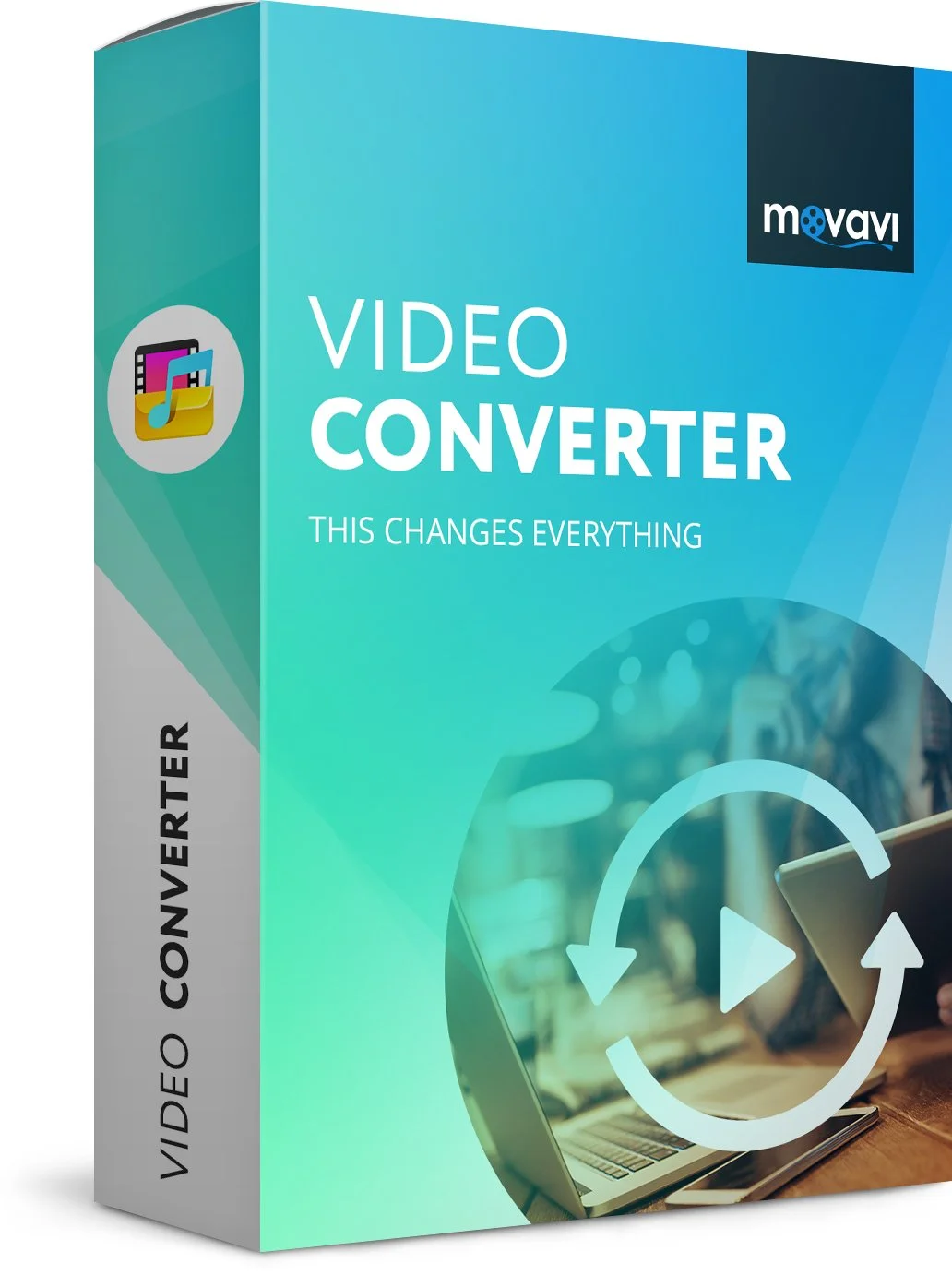
Do you have to convert a WMV video into MP4? Well, that’s one of the smartest decisions withmost of the videos, especially when you want to share them. MP4 is a widely accepted videoformat and is supported by almost all the video playing devices- be it your tablet or smartphone.But how to convert WMV to MP4? The good thing is you have Movavi Video Converter todaywhich is one of the best tools you can have for video conversion. The program can not onlyconvert videos but images, DVDs and audio filed as well.Here is a step by step instruction on how to convert WMV video into MP4 with Movavi VideoConverter- Step 1First, you will download & install Movavi Video Converter into your desktop or laptop. Youwill get instructions in English on how to install it.Step 2Then, you will bring the video file (to be converted) to your program window. Click on AddVideo & add the video that you want to convert.Movavi Video Converter allows you to convert multiple files simultaneously. So, if you have toconvert more than one file into same format, you can add and convert all the files together. Noneed to select and convert each video file individually.Step 3Now, you will select the output format- MP4 in your case. Open Video tab and expand the list toMP4. Then you will select the desired preset.Step 4Well, we have reached at the main stage of the process- Conversion.But before we start the process, we will select the output folder from Save to section. This is thefolder where the converted MP4 video will be stored. Now, just click on Convert tab and startthe conversion. After conversion, the selected folder will open up with your converted file.
Features of Movavi Video Converter
 Supports 180+ formatsOne of the best parts about the Movavi program is that it’s intelligently designed to support morethan 180 multimedia formats. It also supports a huge range of formats for mobile phones.Lightning-fast conversion speed & no quality lossMovavi Video Converter stands out in the competition with its lightning-fast conversion speedthat is 79-81x faster compared to other converters. Most importantly, the Movavi programassures no significant loss of quality during conversion.
Edits and improves video quality
Movavi Video Converter also enables you to perform soma basic editing functions on yourvideo. You will be able to join/trim files, add music or even special effects to improve overallvideo quality.Useful tips for users:If you want to keep the video resolution same as that of the original video, select Same as inputfrom preset list. But if you want a different rate of resolution, you can define your preferred fromthe preset section.
Thanks for taking the time to read this post and sincerely hope it was found helpful and enjoyable! Please feel free to leave thoughts down below in the comments and don’t forget to subscribe to Bane Tech on YouTube, Google+, Facebook, Twitter & Instagram!